
QuickBooks: Manually Entering Electronic Withdrawals & Transaction Numbers

While QuickBooks assigns transaction numbers to ledger entries automatically, you can change them.
Image Credit: Hemera Technologies/AbleStock.com/Getty Images
Before the widespread use of credit cards and the Internet, keeping track of deposits and payments from a business bank account was relatively simple, as most transactions appeared in an easy-to-read-and-understand format on your monthly statement. With modern electronic payment systems, however, cash moves to and from your business accounts quickly and often requires constant monitoring. If you use QuickBooks to keep track of your business finances, the program has no built-in method for entering tracking electronic withdrawals. Nevertheless, you can enter electronic debits or credits manually using the familiar Write Checks screen.
Step 1
Launch QuickBooks, and then click "Banking" on the menu bar. Click "Write Checks" on the drop-down menu.
Step 2
Click the "Bank Account" drop-down list. Select the account from which a bank or vendor made the electronic withdrawal.
Step 3
Enter the name of the organization to which you made the electronic payment in the "Pay to the Order of" field.
Step 4
Click the "Date" icon, and select the date of the transaction on the pop-up calendar.
Step 5
Enter the amount of the electronic payment or withdrawal in the field to the right of the "$" symbol.
Step 6
Type a description of the withdrawal transaction in the "Memo" field if needed. For instance, if the withdrawal was for merchant card processing or check reorder charges, enter "Credit card discount" or "Check printing fees" to help you distinguish the debit in the ledger.
Step 7
Click the check box next to the "Print Later" label to remove the check mark.
Step 8
Highlight the pre-filled check number in the "No:" field, and then press the "Backspace" key to erase the entry.
Step 9
Replace the number erased from the "No:" field with an acronym that lets you know the withdrawal was an electronic debit and not a check. For instance, if you made an ATM withdrawal, enter "ATM." If your merchant account bank deducted fees for credit card processing, enter "EFT" for "Electronic Funds Transfer" or "EW" for "Electronic Withdrawal."
Step 10
Click the "Save" button in the Write Checks window to save the transaction in the general ledger for the bank account you selected in the Bank Account list.
Tip
If you want to enter something more informative than "ATM," "EFT" or the like, you can append a reference number for the transaction to the acronym. For instance, if your statement shows a reference ID number of "123456789" for a withdrawal made by your merchant account bank, you might enter "EFT-123456789" in the "NO:" field to make finding it in the General Ledger screen easier and faster.
-

Home Selling Checklist: 11 Things Buyers Notice
div.cust
-
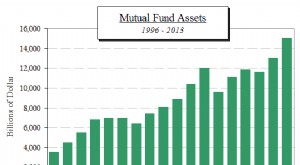
Understanding Mutual Funds: A Comprehensive Guide
[This is the first installment in a series examining index funds. Well discuss the managed mutual fund market first to form a basis of comparison with index funds. In Part II, we will look at how
credit card
- Transferring Credit Card Funds to Your Bank Account: Options & Considerations
- Spouse Using Credit Cards: Liability and Legal Implications
- Temporary Credit Cards: Enhance Online Security & Protect Your Credit
- Wells Fargo Credit Card Deposit: A Simple Guide
- Open a PayPal Account with a Prepaid Visa: A Step-by-Step Guide
- American Express Cards: Benefits & Drawbacks - A Comprehensive Guide
- Maximize Your Rewards: A Guide to Using Capital One Points
- Maximize Your Rewards: A Guide to Redeeming Royal Caribbean Credit Card Points
- Update Your Payment Method for E-ZPass: A Quick Guide
-
 Send Money with a Credit Card: A Guide to MoneyGram & Important Considerations
How to Send a MoneyGram With a Credit Card Warning It's impossible to refund or recover money that has already been paid out to the recipient. In an effort to minimize fraud, MoneyGram ad...
-
 Investing for Beginners: How to Start with $1,000 (or Less)
When you have $1,000 or less to invest, you may think your options are limited. If you factor in the recent tumultuousness of the stock market, investing may seem even more difficult. In reality, man...