
QuickBooks Inventory Management: A Step-by-Step Guide
Tracking inventory in QuickBooks is a great way for businesses to save time and money while also optimizing performance and increasing customer satisfaction.
Many small and mid-sized businesses already use QuickBooks for accounting and other financial reasons. If you’re one of them, adding on inventory tracking is a simple process.

Like other cloud software, QuickBooks allows users to access information anywhere and backs up their work securely. This means everyone can view the most recent data no matter where they are or when they need those numbers.
Using QuickBooks to Track Inventory
Small business owners looking to make QuickBooks part of their inventory tracking solution have two options.
1. Use QuickBooks Inventory Tracking
Perfect for single channel retail businesses
With QuickBooks Online, small business owners can enter:
- Item value - The price of adding that item to your inventory
- Item sale - The price the item was sold for
As items are added or removed from inventory, QuickBooks automatically increases or decreases both the number of items available and the value of inventory managed.
If your small business has grown to scale – or is in the process – the second option may be better for you.
2. Use TradeGecko’s QuickBooks Integration
Perfect for multi-channel retail businesses
Businesses operating multiple sales channels need a solution that ensures inventory counts are accurate everywhere.
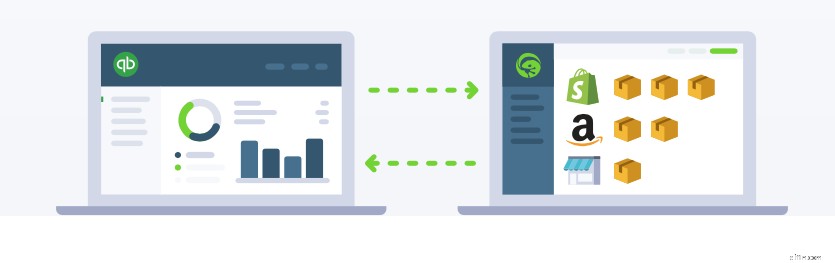
TradeGecko’s integration with QuickBooks allows for management of:
- Multiple locations and warehouses
- Lot and batch tracking
- Bulk actions, including sales orders and more
Because of its popularity with accountants and others, QuickBooks is a great choice for companies looking to add automated inventory tracking. Businesses integrating QuickBooks with TradeGecko add a single interface for managing that inventory across channels coupled with in-depth reports and forecasts that help businesses grow.
Start Entering Inventory with QuickBooks
QuickBooks offers tips on how to add inventory tracking to an existing account, as well as how to add product types and more.
 Whether or not a business uses QuickBooks on its own or through TradeGecko’s integration, adding effective inventory management is an essential part of any growth strategy. Without it, you risk presenting customers with inaccurate information that can lead to confusion, frustration and ultimately abandonment of their relationship with your brand.
Find out how TradeGecko can help you get the most value out of QuickBooks as an inventory management tool today.
-
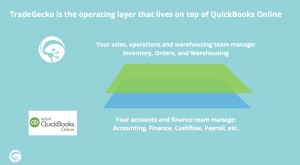
Streamline Inventory Management with QuickBooks Online & TradeGecko
Small business owners know all too well that effective time management is key to running a business successfully. By utilizing TradeGecko as a QuickBooks inventory management add on, you can quickly a
-

Mastering Inventory Management: Strategies for Rapid Growth
It often flies beneath the radar. Since it runs in the background it’s not always top of mind. In fact, it’s downright easy to ignore. It’s inventory management - and not obsessing over it could
Stock management
- QuickBooks Budget Modification: A Step-by-Step Guide
- Calculate Inventory Change: A Comprehensive Guide for Businesses
- Calculate Months of Inventory: A Real Estate Guide
- Optimize Inventory Management: A Step-by-Step Workflow
- Understanding Inventory Carrying Costs: Definition & Calculation
- Inventory Management: Identify, Reduce & Optimize Stock Levels
- Inventory Turnover Ratio: Calculation & Importance
- Calculate Average Inventory: Formula & Importance
- Boost Profits: 9 Proven Strategies to Optimize Inventory Turnover
-
 GAAP Compliance with Inventory Systems: A Comprehensive Guide
Making the important connection between tech-enabled inventory management and the Generally Accepted Accounting Principles (GAAP). Established to make the financial reporting pr...
-
 Working Capital Calculation: Formula & Management Strategies
Effective cashflow management is key to business success. Operating working capital needs to be kept as low as possible, even down into negative values, in order to improve the cash position. To contr...